🎨 Themes

Themes control the full visual appearance of InputBar. They are stored as .json files in Data/Themes/.
Switching themes
Open Data/Settings.json and set the "Theme" key to the filename of the theme you want, without the .json extension:
{
    "Theme": "theme_default"
}
Then reload InputBar (Settings Reload in the search bar, or restart the app).
Available themes
theme_default
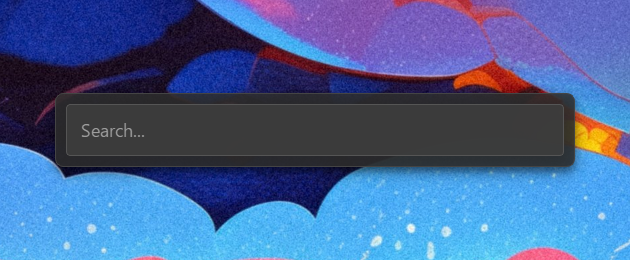
theme_catppuccin_latte
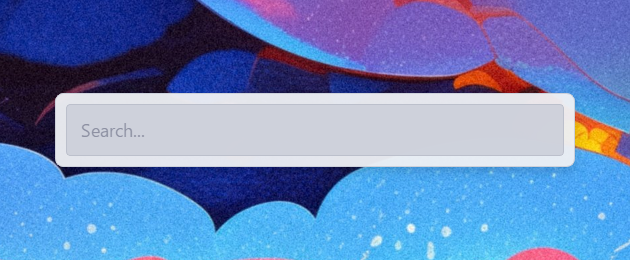
theme_catppuccin_mocha
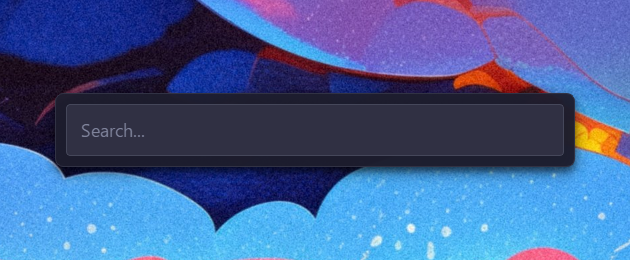
theme_dracula
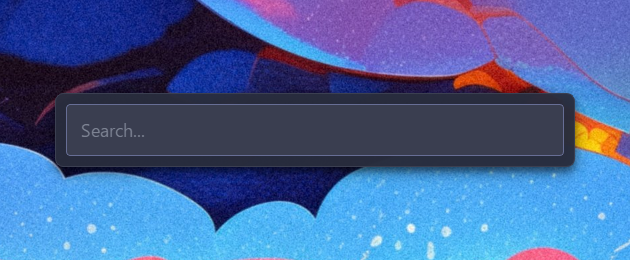
theme_gruvbox
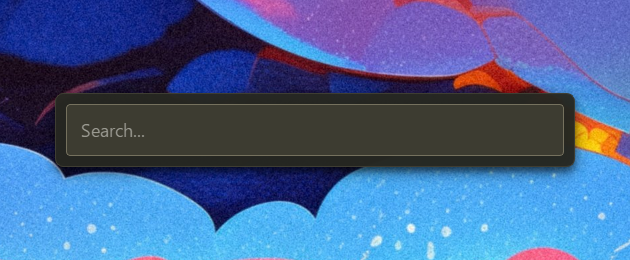
theme_high_contrast
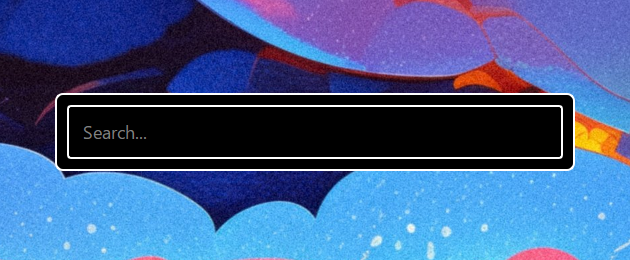
theme_light
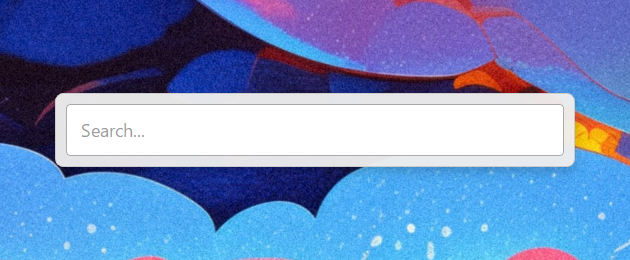
theme_material_palenight
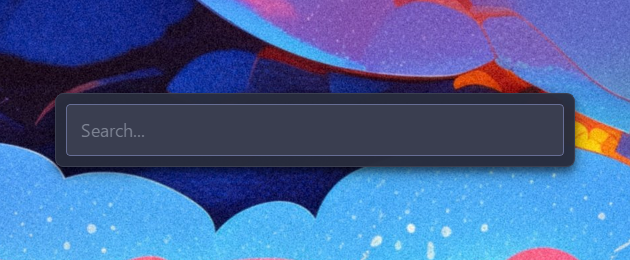
theme_monokai
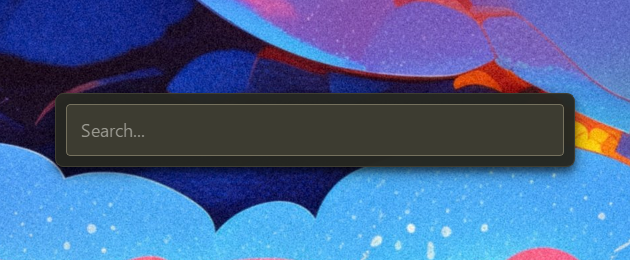
theme_nord
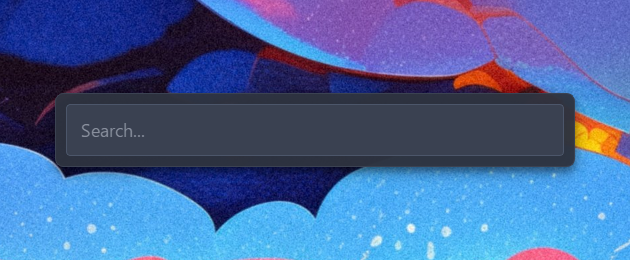
theme_solarized_dark
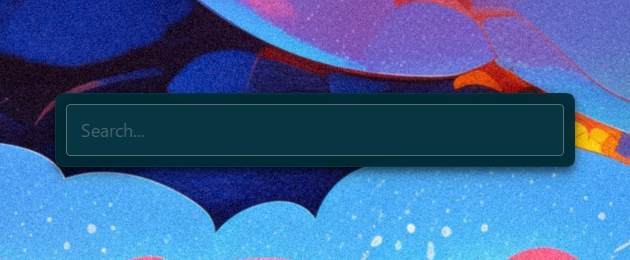
theme_solarized_light
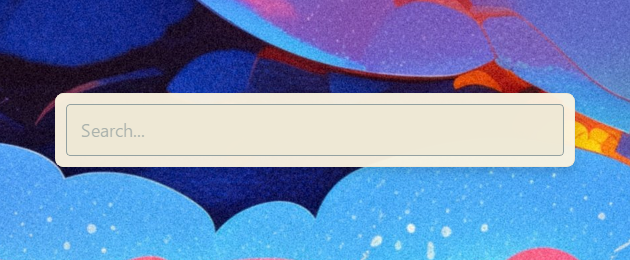
theme_synthwave
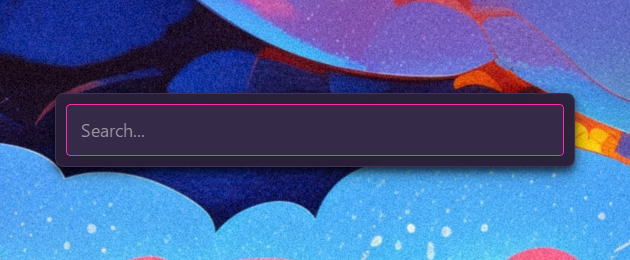
Creating your own theme
- Copy any existing theme from
Data/Themes/and rename it (e.g.mytheme.json). - Edit the values to your liking — see the key reference below.
- Set
"Theme": "mytheme"inData/Settings.jsonand reload.
Any key you omit will automatically fall back to its default value on next startup. Custom themes are never overwritten by updates.
Key reference
window
| Key | Type | Description |
|---|---|---|
width | int | Total window width in pixels |
height | int | Search bar height in pixels (window grows dynamically) |
margin | int | Outer margin around the container |
container
| Key | Type | Description |
|---|---|---|
background | CSS color | Container background |
border | CSS border | Container border |
border_radius | CSS value | Container corner rounding |
shadow_color | [R, G, B, A] | Drop shadow color (0–255 each) |
shadow_blur | int | Drop shadow blur radius |
shadow_x_offset | int | Drop shadow horizontal offset |
shadow_y_offset | int | Drop shadow vertical offset |
padding | int | Inner padding of the container |
spacing | int | Spacing between search bar and results list |
search_bar
| Key | Type | Description |
|---|---|---|
background | CSS color | Search bar background |
text_color | CSS color | Input text color |
border | CSS border | Search bar border |
border_radius | CSS value | Search bar corner rounding |
padding | CSS value | Internal padding of the input |
font_size | CSS value | Font size of the input text |
font_family | string | Font family of the input text |
font_weight | int | Font weight (e.g., 400 for Normal, 700 for Bold) |
placeholder | string | Placeholder text when empty |
results_list
| Key | Type | Description |
|---|---|---|
background | CSS color | List background |
text_color | CSS color | Default item text color |
selected_background | CSS color | Selected item background |
selected_text_color | CSS color | Selected item text color |
font_size | CSS value | Font size of list items |
font_family | string | Font family of list items |
font_weight | int | Font weight of items |
item_padding | CSS value | Padding inside each item |
item_border_radius | CSS value | Corner rounding of each item |
height | int | Height of a single item in pixels |
MaxItemToShow | int | Max visible items before scrolling |
icon_size | int | Size of result icons in pixels |
line_spacing | int | Vertical gap between title and subtitle |
subtitle_opacity | int | Opacity of the second line (0-255) |
subtitle_font_ratio | float | Font size scale for the second line (e.g., 0.8) |
subtitle_font_weight | int | Font weight for the second line |
scrollbar
| Key | Type | Description |
|---|---|---|
width | CSS value | Scrollbar width — "0px" hides it (default) |
background | CSS color | Scrollbar track background |
handle_color | CSS color | Scrollbar handle color |
handle_hover_color | CSS color | Scrollbar handle color on hover |
border_radius | CSS value | Scrollbar handle corner rounding |
icons
Allows tinting specific system icons to match the theme.
| Key | Type | Description |
|---|---|---|
arrow_down | CSS color | Down arrow icon color |
arrow_left | CSS color | Left arrow icon color |
arrow_right | CSS color | Right arrow icon color |
arrow_up | CSS color | Up arrow icon color |
admin | CSS color | Admin shield icon color |
folder | CSS color | Folder icon color |
plugin | CSS color | General plugin icon color |
settings | CSS color | Settings/Config icon color |
shell | CSS color | Terminal icon color |
system | CSS color | System command icon color |
Colors accept any valid CSS format: rgba(R, G, B, A), #RRGGBB, #RGB, or named colors (white, transparent, etc.).
Poids de police (weights) values follow standard CSS naming: 100 (Thin), 400 (Normal), 700 (Bold), 900 (Black).