⚡ Quick Apply (Presets)
Quick Apply works by recording the exact screen position of a preset icon in Premiere Pro's effect browser. When you apply a preset from the search bar, the app automatically:
- Opens the Effects panel
- Types the preset name in the search box
- Drags the preset from its recorded position to your timeline cursor
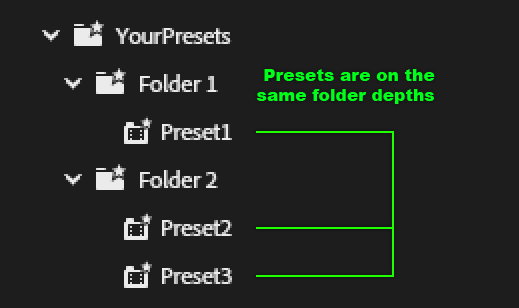
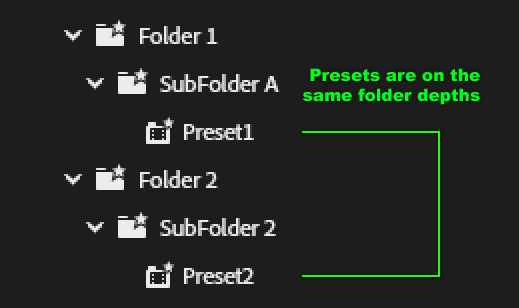
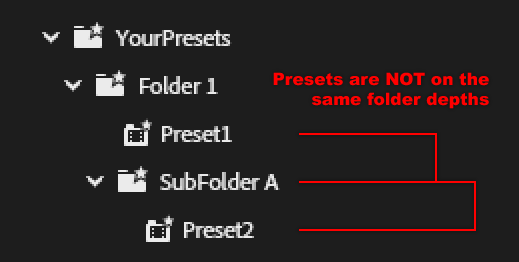
For this to work reliably, all your presets must be stored at the same folder depth in Premiere Pro's preset browser, so that a search always returns exactly one result at a consistent screen position.
Step 1 — Assign Keybinds
Go to the Quick Apply → Configure page and make sure the following shortcuts match exactly what you have configured in Premiere Pro:
| Action | Default |
|---|---|
| Window > Effect | Shift+2 |
| Search Find Box | Shift+F |
| Window > Timelines | Shift+3 |
⚠️ This is critical. If these shortcuts don't match Premiere Pro's actual keybindings, preset capture and application will fail.
Step 2 — Set Latency
The Latency slider (50 – 1000 ms) controls how long the app waits between sending each keyboard shortcut to Premiere Pro before checking that the Effects search box is focused.
- Lower values (50–150 ms): faster, but can fail on slower machines or when Premiere is loading a project.
- Higher values (300–500 ms): safer for heavy Premiere sessions. Use this if calibration succeeds but preset application occasionally misses.
The default of 200 ms works for most setups. Adjust only if you see focus-check failures or missed presets.
Step 3 — Run the Calibration Wizard
- In Premiere Pro's effect browser, search for one specific preset — make sure only one result appears in the list.
- Click "🚀 Start Calibration (5s)" in the wizard, then move your mouse cursor over the preset icon in Premiere Pro within the 5-second countdown.
- After 5 seconds, the app focuses the Effects panel, opens the search box, and verifies that an
Editcontrol is active. If validation fails, double-check your keybinds and try again.
💡 Pro Tip: Premiere Companion records the absolute screen position of your presets. Keep your Premiere Pro workspace (specifically the Effects panel) at the same size and location. If you ever change your workspace layout, just re-run the calibration.
Test Position
After a successful calibration, click Test Position to verify the saved coordinates — the app moves your mouse to the recorded position so you can confirm it lands on the preset icon.
Step 4 — Preset Release Mode
Choose what happens after the preset is attached to your mouse:
| Mode | Behavior |
|---|---|
| Release at mouse (default) | The drag is released at your current cursor position automatically — just hold the mouse over the target clip before pressing Enter |
| Keep on mouse | The preset stays attached to the mouse cursor; you must click to drop it on the clip |
Release at mouse is best for most workflows. Use Keep on mouse if you prefer to control exactly where the preset lands after the drag starts.
Toggle this setting in Quick Apply → Configure → Preset Release Mode, then click Save Configuration.
Step 5 — Start Using!
Your presets will be indexed and appear in the search bar under the Preset category automatically once calibration is complete.
That's it — you can now apply presets instantly from the search bar! 🎉
Adjusting Delay After Calibration
The delay can be changed at any time without re-calibrating:
- Quick Apply → Configure → Latency slider — change and save
- Search bar →
/QA→Set Delay (N ms)→ Enter — opens a numeric dialog directly
Back to Guide